
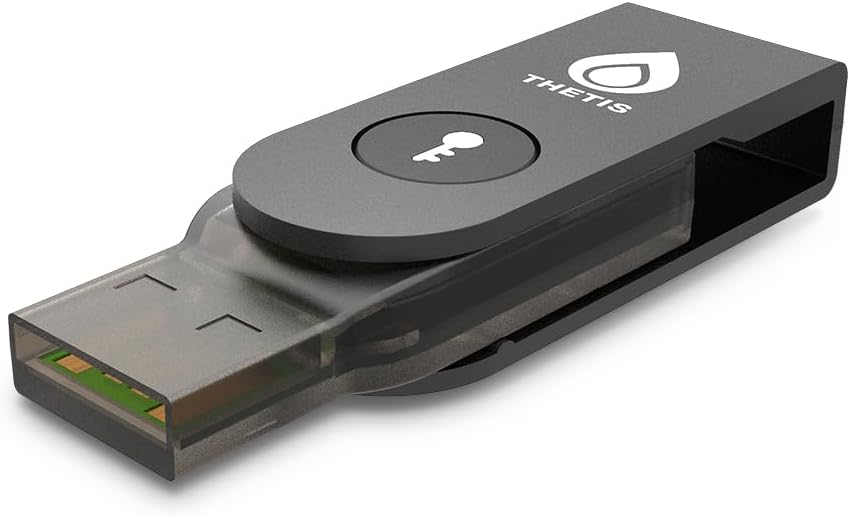
In the previous guide we took a look at how to setup our security key and how to use it to login and as a verification for sudo. This time, we will take a look at one of the other uses for our key: Secure storage of private keys.
Pros
The pros of using a hardware key for key storage might be pretty obvious.
- Data Persistence
Since keys are stored on a separate USB device, you don’t have to worry about maintaining a backup for the event of a crash or computer hardware failure. - Portability
Having the keys on a USB device means they are portable and can be used on any system that supports them. While this is this is true of a USB drive, there the keys are visible and can be copied by anyone with the proper permissions. - Security
It is not impossible to dump the data of a security key and potentially decrypt it. However, it is a destructive process that requires physical access to the key and is so difficult that it is out of the realm of possibility for most of even the hardcore nerds. They would have to not only target you specifically, but also would have to be really dedicated to gaining access to the machine it protects, such as a government employee’s access to servers. Even then, you would know your key is missing and can invalidate it and setup a new one much faster than the bad-actor can crack it.
Cons
The only con I can really think of is that, if used incorrectly, it can be a single point of failure. For instance, if you were to disable password logins and only had the hardware key’s ssh key, then the loss or damage of that key would result in a total lockout. You should setup your security strategy to use the hardware key as the primary authentication source, but also have backup methods such as OTP, secondary keys or a very large password.
Generating an SSH Key
The process for generating an ssh key on your hardware key is mostly the same as it is for generating any other ssh key. For older or more economical keys, you will most likely have to stick with ecdsa-sk while newer and more expensive keys can make use of the more preferred ed25519-sk key. If you are not using a key with a button or biometric input, you should skip the -O verify-required option.
ed25519-sk
ssh-keygen -t ed25519-sk -O resident -O verify-required -O application=ssh:<name> -C "your_email@example.com"ecdsa-sk
ssh-keygen -t ecdsa-sk -O resident -O verify-required -O application=ssh:<name> -C "your_email@example.com"- -O resident
This flag is required as it for registering the key on your FIDO2 device. - -O verify-required
This flag is for requiring your interaction with the key during verification. - -O application=ssh:<name>
This optional flag is used to give a label to your keys, making management easier.
Importing Keys to a New Machine
If you’re recovering from a hardware failure or just need to use your keys while on another computer, you will simply need to use ssh-keygen to create the handles and import the public keys
ssh-keygen -KSecuring LUKS
Not only can you use your FIDO2 key for passwordless login and securely storing ssh keys, but you can also use them to secure your LUKS encryption with the systemd-cryptenroll utility.
Before continuing, you should already have LUKS configured and also either have setup /etc/crypttab or customized your initramfs. See here for more information.
If you have more than one FIDO2 key, use the following command to list them and identify the one you want.
systemd-cryptenroll --fido2-device=listNow, once we know what device we are targeting, we can register the key with a LUKS slot. If you are targeting a specific device from the last step, replace fido2=auto with fido2=/dev/hidrawX
systemd-cryptenroll --fido2-device=auto /dev/sdXNon-root partitions
To also include non-root partitions, you would need to add an entry to your /etc/crypttab similar to the following
data /dev/sdX none fido2-device=autoLVM
To include logical volumes managed by LVM, the entry would also be very similar
data /dev/vg1/data none fido2-device=auto